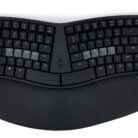
mWave for Mac Firmware Update (6-14-26)

June 14, 2026 Release Notes (Version Hash: 20260614-ansi-mac-b53b155-ed3a383)

  • Added support for “String Macros” in Clique (experimental)
  • Debounce changed from 15ms to 5ms to reduce potentially missed keystrokes
  • Modified Bluetooth settings to improve performance

May 10, 2025 Release Notes (Version Hash: 20250510-ansi-mac-26d0fe0-3d06c6a)

  • Clear Bluetooth Pairing command now requires that the key be held for 3 seconds to ensure there is no accidental de-pairing. Hold the key down until the Profile LED starts flashing (3 seconds)
  • Profile LED no longer illuminates when the keyboard wakes up from sleep mode.

Installation Instructions

1) Click the “Download” button above.

2) Connect the keyboard to your PC with the USB cable.

3) Double-click the Reset button on the underside of the keyboard through the small hole near the USB port to mount a removable drive called “MWAVE”.

4) Unzip and copy/paste the .uf2 firmware file on to the “MWAVE” drive. When the indicators stop flashing blue the keyboard is ready to use.

Important Note: You computer may report a file transfer error or drive eject error but those can be safely ignored.
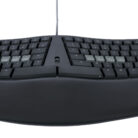
mWave for PC Firmware Update (6-14-26)

June 14, 2026 Release Notes (Version Hash: 20260614-ansi-windows-b53b155-ed3a383)

  • Added support for “String Macros” in Clique (experimental)
  • Debounce changed from 15ms to 5ms to reduce potentially missed keystrokes
  • Modified Bluetooth settings to improve performance

May 10, 2025 Release Notes (Version Hash: 20250510-ansi-windows-26d0fe0-3d06c6a)

  • Clear Bluetooth Pairing command now requires that the key be held for 3 seconds to ensure there is no accidental de-pairing. Hold the key down until the Profile LED starts flashing (3 seconds)
  • Profile LED no longer illuminates when the keyboard wakes up from sleep mode.

Installation Instructions

1) Click the “Download” button above.

2) Connect the keyboard to your PC with the USB cable.

3) Double-click the Reset button on the underside of the keyboard through the small hole near the USB port to mount a removable drive called “MWAVE”.

4) Unzip and copy/paste the .uf2 firmware file on to the “MWAVE” drive. When the indicators stop flashing blue the keyboard is ready to use.

Important Note: You computer may report a file transfer error or drive eject error but those can be safely ignored.
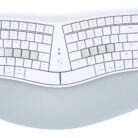
mWave for PC Firmware- 5ms Debounce

This mWave for PC firmware features a 5ms debounce setting which may result in fewer missed keystrokes for certain users (15ms is the factory default debounce).

This firmware also includes experimental “string macros” which are not yet supported in Clique so you can ignore the “Unknown Behaviors Detected” warning when launching Clique.

Version: 20260607-ansi-windows-462c8cf-c05e184

Installation Instructions

1) Click the “Download” button above.

2) Connect the keyboard to your PC with the USB cable.

3) Double-click the Reset button on the underside of the keyboard through the small hole near the USB port to mount a removable drive called “MWAVE”.

4) Unzip and copy/paste the .uf2 firmware file on to the “MWAVE” drive. When the indicators stop flashing blue the keyboard is ready to use.

Important Note: Windows may report a file transfer error but that can be safely ignored.

mWave for Mac Firmware- 5ms Debounce

This mWave for Mac firmware features a 5ms debounce setting which may result in fewer missed keystrokes for certain users (15ms is the factory default debounce).

This firmware also includes experimental “string macros” which are not yet supported in Clique so you can ignore the “Unknown Behaviors Detected” warning when launching Clique.

Version: 20260607-ansi-mac-462c8cf-c05e184

Installation Instructions

1) Click the “Download” button above.

2) Connect the keyboard to your PC with the USB cable.

3) Double-click the Reset button on the underside of the keyboard through the small hole near the USB port to mount a removable drive called “MWAVE”.

4) Unzip and copy/paste the .uf2 firmware file on to the “MWAVE” drive. When the indicators stop flashing blue the keyboard is ready to use.

Important Note: macOS may report a file transfer or drive eject error but that can be safely ignored.

mWave Test Firmware- 10ms Debounce

This firmware features a 10ms debounce setting which may result in fewer missed keystrokes for certain users (15ms is the factory default debounce). Both Windows and Mac layouts are included in the download so install the appropriate file for your device.

This firmware also includes experimental “string macros” which are not yet supported in Clique so you can ignore the “Unknown Behaviors Detected” warning when launching Clique.

Versions:

  • 20260607-ansi-windows-462c8cf-b5a4c23
  • 20260607-ansi-mac-462c8cf-b5a4c23

Installation Instructions

1) Click the Download above.

2) Connect the keyboard to your PC with the USB cable.

3) Double-click the Reset button on the underside of the keyboard through the small hole near the USB port to mount a removable drive called “MWAVE”.

4) Unzip and copy/paste the desired .uf2 firmware file (Windows or Mac version) on to the “MWAVE” drive. When the indicators stop flashing blue the keyboard is ready to use.

Important Note: Windows may report a file transfer error but that can be safely ignored.


mWave Test Firmware- 5ms Debounce

This firmware features a 5ms debounce setting which may result in fewer missed keystrokes for certain users (15ms is the factory default debounce). Both Windows and Mac layouts are included in the download so install the appropriate file for your device.

This firmware also includes experimental “string macros” which are not yet supported in Clique so you can ignore the “Unknown Behaviors Detected” warning when launching Clique.

Versions:

  • 20260607-ansi-windows-462c8cf-c05e184
  • 20260607-ansi-mac-462c8cf-c05e184

Installation Instructions

1) Click the “Download” button above.

2) Connect the keyboard to your PC with the USB cable.

3) Double-click the Reset button on the underside of the keyboard through the small hole near the USB port to mount a removable drive called “MWAVE”.

4) Unzip and copy/paste the desired .uf2 firmware file (Windows or Mac version) on to the “MWAVE” drive. When the indicators stop flashing blue the keyboard is ready to use.

Important Note: Windows may report a file transfer error but that can be safely ignored.

mWave for Mac High Security Firmware

This firmware update disables the Bluetooth Radio regardless of Profile Switch Position, and blocks access to Clique and ZMK Studio rendering the keyboard non-programmable. Mac Layout.

mWave for PC High Security Firmware

This firmware update disables the Bluetooth Radio regardless of Profile Switch Position, and blocks access to Clique and ZMK Studio rendering the keyboard non-programmable. Windows Layout.

mWave Mac Firmware (v1-28-26)

Optional Firmware Update (v1-28-26): Mac Layout

20260128-ansi-mac-b900f41-d0f0d1a

Change Log:

  • May address pairing issues with newer “M5” Macs
  • May address BIOS access
  • Clear Bluetooth Pairing command now requires that the key be held for 3 seconds to ensure there is no accidental de-pairing. Hold the key down until the Profile LED starts flashing (3 seconds)
  • Profile LED no longer illuminates when the keyboard wakes up from sleep mode.


mWave Mac Firmware (v5-10-25)

Optional Firmware Update (v5-10-25): Mac Layout

20250510-ansi-mac-26d0fe0-3d06c6a

Change Log:

  • Clear Bluetooth Pairing command now requires that the key be held for 3 seconds to ensure there is no accidental de-pairing. Hold the key down until the Profile LED starts flashing (3 seconds)
  • Profile LED no longer illuminates when the keyboard wakes up from sleep mode.

mWave PC Firmware (v5-10-25)

Optional Firmware Update (v5-10-25): PC Layout

20250510-ansi-windows-26d0fe0-3d06c6a

Change Log:

  • Clear Bluetooth Pairing command now requires that the key be held for 3 seconds to ensure there is no accidental de-pairing. Hold the key down until the Profile LED starts flashing (3 seconds)
  • Profile LED no longer illuminates when the keyboard wakes up from sleep mode.
©2026 KINESIS
advanced-floating-content-close-btn

Qualified EH&S Professionals
Get Your Free Sample