Converting to Windows
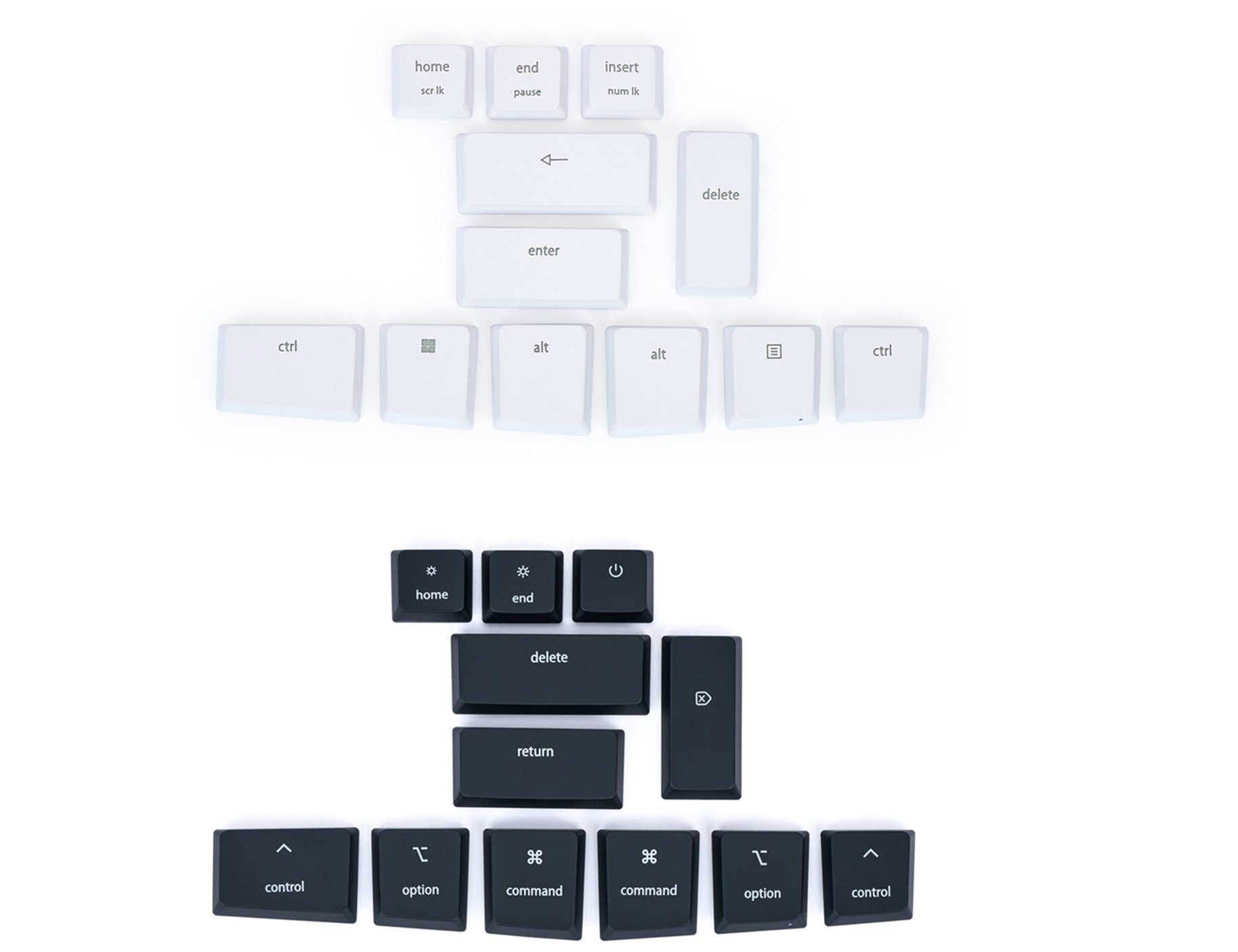
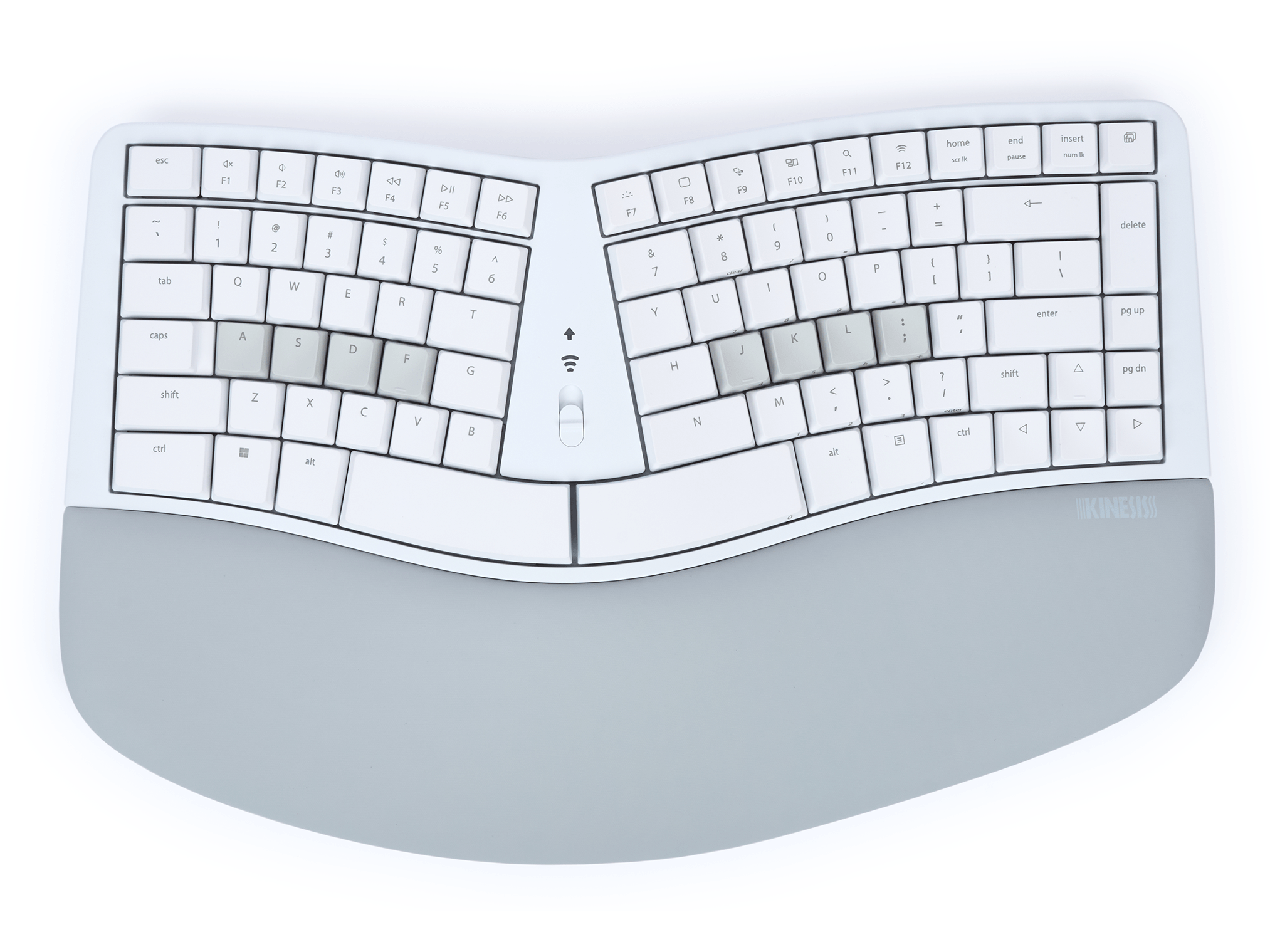
Convert your white mWave for Mac keyboard to a Windows layout with these 12 white keycaps using the included keycap removal tool and Kinesis Clique. This 12pc set includes the following keycaps:
- Left Ctrl
- Left Windows
- Left Alt
- Right Alt
- Menu
- Right Ctrl
- Backspace
- Enter
- Delete
- Home (Scroll Lock)
- End (Pause)
- Insert (Num Lock)
Instructions
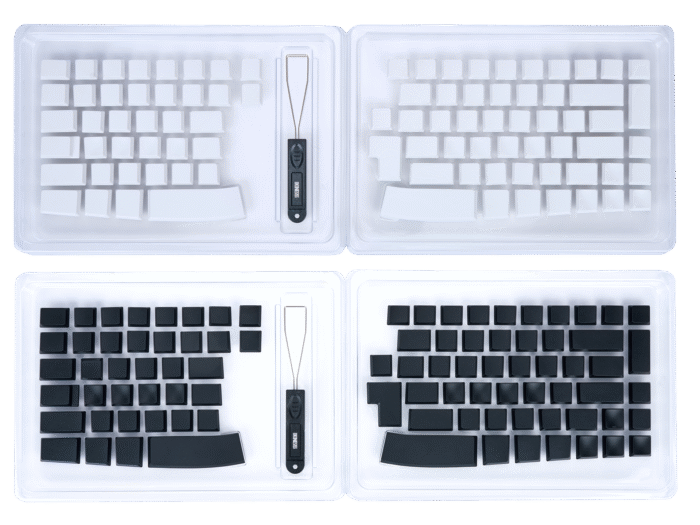
Use the included keycap puller to gently remove the 12 keycaps and install the Windows keycaps in their place. After installing the keycaps you will need to use Kinesis Clique to reprogram the key actions to match the new keycaps and reconfigure the hotkeys to work on Windows.
Launch Clique
- With the Fn Layer selected, use the “Quick Configurations” drop menu to select “Windows Modifiers” to remap the keys in the bottom row.
- With the Base Layer selected, use the “Quick Configurations” drop menu to select “Windows Hotkeys” to remap the Desktop, Screenshot Tool, Show All Windows, and Search in the top row.
Converting to Mac
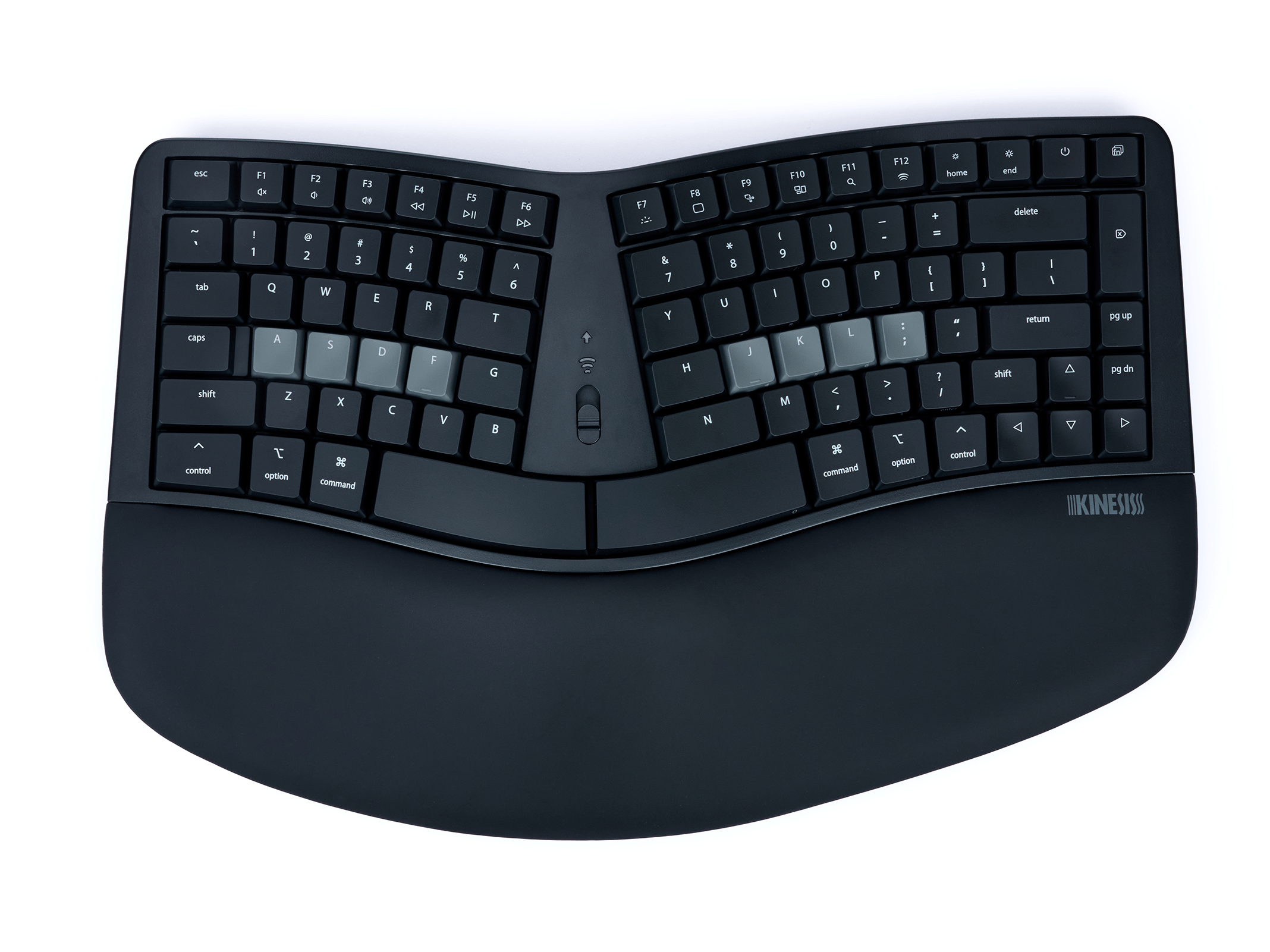
Convert your black mWave for PC keyboard to a Mac layout with these 12 black keycaps using the included keycap removal tool and Kinesis Clique. This 12pc set includes the following keycaps:
- Left Control
- Left Option
- Left Command
- Right Command
- Right Optional
- Right Control
- Delete
- Return
- Forward Delete
- Brightness Down (Home)
- Brightness Up (End)
- Power
Instructions
Use the included keycap puller to gently remove the 12 keycaps and install the Mac keycaps in their place. After installing the keycaps you will need to use Kinesis Clique to reprogram the key actions to match the new keycaps and reconfigure the hotkeys to work on macOS.
Launch Clique
- With the Base Layer selected, use the “Quick Configurations” drop menu to select “Mac Modifiers” to remap the keys in the bottom row.
- With the Fn Layer selected, use the “Quick Configurations” drop menu to select “Mac Hotkeys” to remap the Desktop, Screenshot Tool, Show All Windows, and Search in the top row.